


Turning off Google Photos syncing can feel risky because it is easy to confuse device photos with cloud backups. The safest approach is to confirm what is already backed up, save anything that is only on your phone, then disable syncing in the right place.
Understand What Google Photos Syncing Really Does
Google Photos syncing is controlled by the Backup setting in the Google Photos app. When Backup is on, photos and videos from selected device folders upload to your Google Account storage.
Turning Backup off stops automatic uploads from that device. It does not delete pictures already saved to your Google Photos cloud library or remove photos stored locally on your phone. However, Google Photos can still display pictures saved only on your device, even when Backup is disabled. Seeing a picture in the app does not necessarily mean it has been uploaded to your Google Account.
Know the Two Places Your Pictures Can Live
Your pictures can exist in two main locations: on-device storage and your Google Photos cloud library. Problems happen when a photo exists only in one place and you assume it is in both.
Before changing settings, open Google Photos on your phone and check the backup status of important pictures. Then visit photos.google.com in a browser using the same Google Account. Pictures visible on the website have been uploaded to that account, while pictures appearing only in the mobile app may be stored locally. Checking both locations helps you identify which files need an additional backup before you disable automatic uploads.
Quick Safety Checklist Before You Turn Sync Off
Do these checks first to avoid accidental loss. They take a few minutes and remove most of the risk.
- Confirm the Correct Google Account: Open Google Photos, tap your profile picture, and verify that you are signed into the Google Account containing your expected photo library.
- Check Backup Status: Tap your profile picture to review the current backup status. If your backup is complete, Google Photos should indicate that no items remain to upload. You can also open individual pictures and review their backup details.
- Review Device Folders on Android: Open Collections, select On this device, and check folders containing screenshots, downloads, or messaging app images. Some folders may contain pictures that were never uploaded.
- Save Important Device-Only Pictures: Copy photos and videos that have not been backed up to a computer, external drive, or another trusted storage location before changing backup settings.
Once these basics are done, you can disable syncing with confidence.
If you are unsure whether your older pictures have been uploaded, our guide on how to find backup photos on Google explains how to locate saved images, review albums, and search your Google Photos library.
How to Stop Google Photos Syncing on Android?
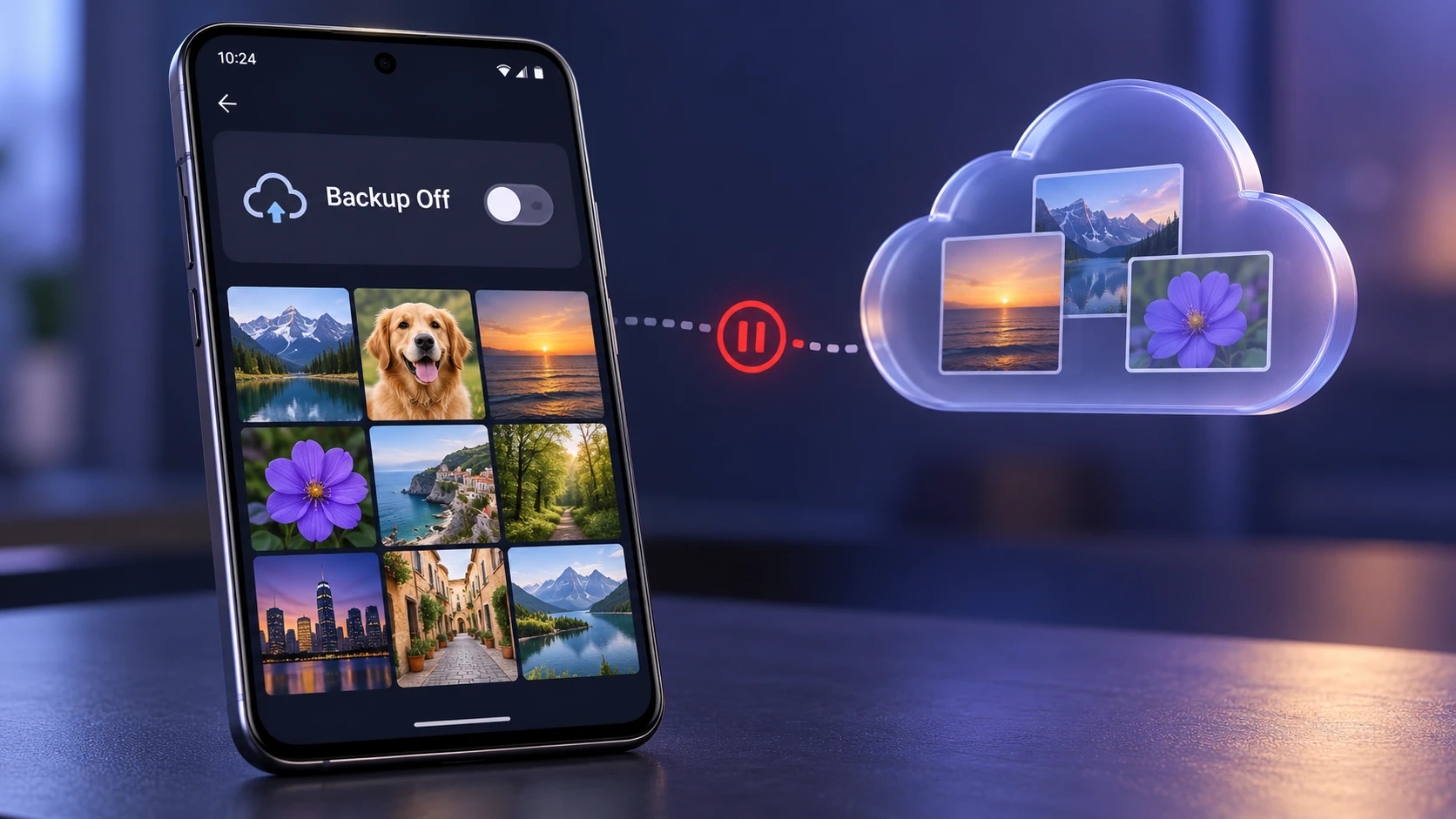
On Android, the main switch is inside Google Photos. Turning it off stops future uploads from the phone, while keeping your existing cloud library intact.
- Open Google Photos: Make sure you are signed into the correct Google Account.
- Go to Photos Settings: Tap your profile icon, then open Photos settings.
- Open Backup: Enter the Backup section to view the current status.
- Turn Backup Off: Toggle Backup off and confirm when prompted.
After turning Backup off, return to your Google Photos profile menu and confirm that the status says Backup is off. You can still browse pictures stored on your phone through Collections and On this device. These photos may remain visible inside Google Photos even though they are no longer being uploaded automatically. Turning off Backup does not change where your phone’s camera saves new pictures.
For additional help with backup settings, Google’s official Google Photos backup instructions for Android explain how to manage automatic uploads, check backup status, and review available backup options.
How to Stop Google Photos Syncing on iPhone and iPad?
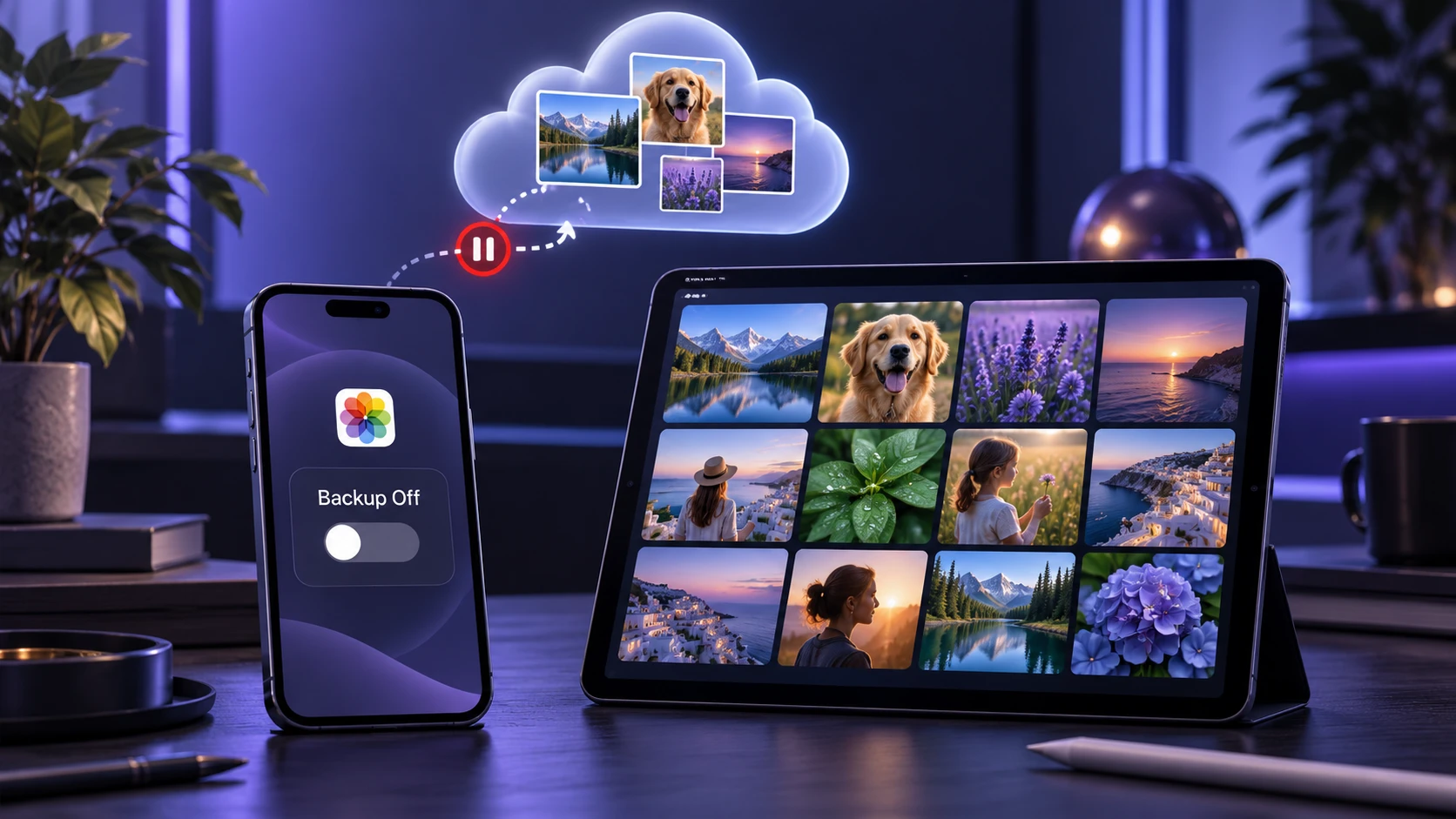
On iOS, Google Photos can still back up your camera roll when the app has permission to access Photos. Disabling Backup in the app is the key step.
- Open Google Photos: Verify the active Google Account from the profile icon.
- Open Photos Settings: Tap your profile icon, then Google Photos settings.
- Open Backup: View the current backup state and any network preferences.
- Switch Backup Off: Toggle Backup off to stop new uploads.
You can also follow Google’s official Google Photos backup instructions for iPhone and iPad to confirm the current backup settings and learn how to check whether individual pictures have been uploaded.
Turning off Backup inside Google Photos is normally sufficient to stop automatic uploads to your Google Account. For additional privacy, you can review Google Photos access to your photo library in your iPhone or iPad settings. Restricting that access may limit the app’s ability to display or import pictures stored on your device.
Remember that Google Photos Backup and Apple iCloud Photos are separate services. Turning off Google Photos Backup does not automatically disable iCloud Photos syncing. Apple’s official iCloud Photos documentation explains how to manage photo syncing across Apple devices.
How to Stop Google Photos Backup for Certain Android Folders?
On Android, Google Photos allows you to control backups for individual device folders while keeping your main camera backup enabled. This is useful when you want to exclude screenshots, downloaded images, or messaging app media from automatic cloud uploads.
To change these settings, open Google Photos and tap your profile picture. Go to Photos settings, select Backup, and then open Back up device folders. Turn off backup for folders you do not want uploaded. If Back up all device folders is enabled, review that option as well because it can automatically include newly created folders.
For more information about locating pictures saved by other apps and changing folder backup preferences, see Google’s guide to managing Android device folders.
- Screenshots: Keeps your cloud library cleaner and avoids uploading sensitive screen captures.
- Downloads: Prevents random files from being mixed into your photo timeline.
- Messaging App Media: Reduces duplicates and lowers backup volume.
This approach is often better than disabling Backup entirely if you mainly want to control what uploads. Keep the main Backup setting enabled if you want your camera photos to continue uploading automatically.
What Happens to Existing Photos After You Turn Sync Off?
Photos already backed up remain in your Google Photos library and stay accessible at photos.google.com. Turning Backup off does not remove them from the cloud.
Pictures physically stored on your phone remain there after you turn Backup off. However, if you previously used the Free up space on this device feature, some pictures may exist only in your Google Photos cloud library. These cloud-only pictures might still appear in the Google Photos app but may not be available through your phone’s built-in gallery or without an internet connection. Download any important cloud-only pictures before relying on local storage alone.
Google’s explanation of how Google Photos frees up device storage describes what happens when local copies are removed and why previously backed-up pictures may remain accessible online.
Stop Automatic Sync Without Deleting Anything
If your goal is simply to stop background uploads, do not delete anything and do not run storage cleanup tools. Focus on disabling Backup and then verifying that new photos stay on your device.
After disabling Backup, confirm that Google Photos displays Backup is off. Take a new picture and wait a few minutes while your phone is connected to the internet. Next, open photos.google.com in a browser and sign into the same Google Account.
If the new picture does not appear online, it was not automatically uploaded during your test. The picture may still appear in the Google Photos mobile app because the app can display files saved locally on your phone.
Common Settings That Can Look Like Syncing
Pictures may continue appearing in the Google Photos app after Backup is disabled because the app can display locally stored images. However, if new pictures appear on photos.google.com, check whether another device is uploading them, whether they were added manually, or whether a sharing feature is involved. Allowing Google Photos to access pictures on your phone does not, by itself, mean automatic Backup is enabled.
- Shared Albums: If you add photos to a shared album, they may upload as part of that action.
- Partner Sharing: Photos can continue appearing in another account if partner sharing is enabled.
- Multiple Devices: Another phone signed into the same Google Account may still be backing up.
- Previously Completed Uploads: Pictures that finished uploading shortly before you disabled Backup may appear in your cloud library even though you noticed them afterward.
If unexpected pictures continue appearing in your online Google Photos library, check Backup settings separately on every phone or tablet connected to the same Google Account. Also review manual uploads and photo-sharing features before assuming that Backup has been reactivated on your original device.
Use This Table to Choose the Right Approach
Different goals require different settings. Use this comparison to pick the safest option without losing pictures.
| Your Goal | Recommended Setting | Important Consideration |
|---|---|---|
| Stop Automatic Google Photos Uploads | Turn Backup off in Google Photos | Existing cloud pictures remain, but new device photos will not be automatically backed up. |
| Keep Camera Backup But Exclude Other Folders | On Android, disable backup for selected device folders | Keep the main Backup setting enabled. |
| Reduce Mobile Data Consumption | Adjust Mobile data usage under Google Photos Backup settings | Automatic backup can continue when Wi-Fi is available. |
| Restrict Google Photos Access to Device Pictures | Review photo permissions in Android or iOS settings | Some app features may stop working, but existing cloud backups are not automatically deleted. |
Once you decide which route matches your goal, apply one change at a time and recheck your backup status.
How to Download and Keep A Local Copy of Your Cloud Library?
If you want a full offline archive, download your cloud photos before making major changes. This protects you from account issues, accidental deletes, or device loss.
On a computer, open Google Takeout and sign into the Google Account containing your pictures. Select Google Photos, choose your preferred export settings, and request a downloadable archive. Once the export is ready, download the files and save them to an external drive or another secure storage location. Open several pictures and videos to confirm that the archive downloaded correctly before relying on it as a backup.
If you want another online location for your photos, our comparison of top cloud storage options discusses alternative services and important features to consider when choosing a second backup provider.
How to Avoid Losing Pictures When Cleaning Up Storage?
The biggest losses happen during cleanup, not while toggling Backup. If you are freeing space on your phone, confirm you have at least one other copy before deleting anything.
If you are trying to free up space but your phone still shows a storage warning, our guide on why phone storage is still full after deleting files explains how temporary files, trash folders, cached data, and other storage issues can affect available space.
- Check Recently Deleted: Google Photos and your device may have separate trash or recently deleted folders with limited retention periods.
- Do Not Delete From the Photos Tab Blindly: Deleting pictures through Google Photos can remove device copies and backed-up versions, depending on the action and backup settings.
- Separate Local and Cloud Decisions: Decide whether you are removing a device copy, a cloud copy, or both before confirming any deletion.
For better protection, keep at least two independent copies of important photos, such as a cloud backup and a verified copy on an external drive. Review your backups periodically and avoid deleting pictures until you have confirmed that another copy is available. A simple backup routine can protect your memories even if your phone is damaged, lost, or replaced.
Troubleshooting If Photos Seem to Disappear
If you cannot find pictures after changing settings, stay calm and check the most common locations first. Most of the time, the files are still in the cloud, a device folder, or the trash.
- Search By Date or Filename: Use Google Photos search to surface items that are not in the main view.
- Check Archive and Trash: Look in Archive and Trash before assuming deletion is permanent.
- Confirm Account and Device: Switching Google Accounts can make a library look empty.
- Check Photos on Device: On Android, open Collections and then On this device to find local folders that may contain pictures missing from your cloud library.
If the issue continues, pause and verify each copy location before making more changes. Rapid toggling and deleting can increase the risk of permanent loss.
If your pictures were accidentally deleted rather than simply hidden, our guide on how to recover deleted files on any device explains additional places to check for recoverable photos and other missing files.
Conclusion
You can stop Google Photos syncing without losing your pictures by confirming what is backed up, saving any device-only files, and then turning Backup off or limiting it to specific folders. Existing cloud photos remain available unless you delete them, and device photos remain unless you remove them.
Make one change at a time, then test with a new photo to confirm behavior. A simple backup habit with a cloud library plus an offline copy gives you the most control with the least stress.
Frequently Asked Questions
Will Turning Off Backup Delete Photos From Google Photos?
No. Turning Backup off stops new uploads from that device, but it does not remove photos already stored in your Google Photos cloud library. If you delete items from the Google Photos timeline, that is a separate action and can remove cloud copies or pictures stored on connected devices.
Why are Photos Still Appearing in Google Photos After I Turned Syncing Off?
Google Photos can display pictures stored locally on your phone even when automatic Backup is turned off. If new pictures also appear on photos.google.com, another device connected to your Google Account may still be uploading them. Manual uploads, shared albums, and partner sharing can also affect what appears in your cloud library. Check the web version of Google Photos to distinguish actual cloud uploads from pictures stored only on your device.
How Do I Keep Photos Only on My Phone and Not in the Cloud?
To keep new pictures only on your phone, turn off Backup in Google Photos. However, disabling Backup does not remove pictures that were previously uploaded to your Google Account. If you also want to remove existing cloud copies while preserving the pictures on your device, first verify that the original files are stored locally and create an additional backup.
Google provides separate options for removing selected backed-up pictures or using Undo device backup. These actions require extra care because cloud deletions may affect albums, sharing, and other connected devices.
If your goal is to remove pictures already stored online, review Google’s official instructions to remove backed-up photos from Google Photos without deleting device copies. Do not use these deletion options unless you have verified that your important pictures are safely stored elsewhere.
Does Turning Off Google Photos Backup Also Stop iCloud Photos?
No. Google Photos Backup and Apple’s iCloud Photos are separate services. Turning off Google Photos Backup stops automatic uploads to your Google Account from that device, but iCloud Photos may continue syncing your iPhone or iPad pictures. To review iCloud Photos, open your Apple device settings, select your Apple Account, go to iCloud, and open Photos.