
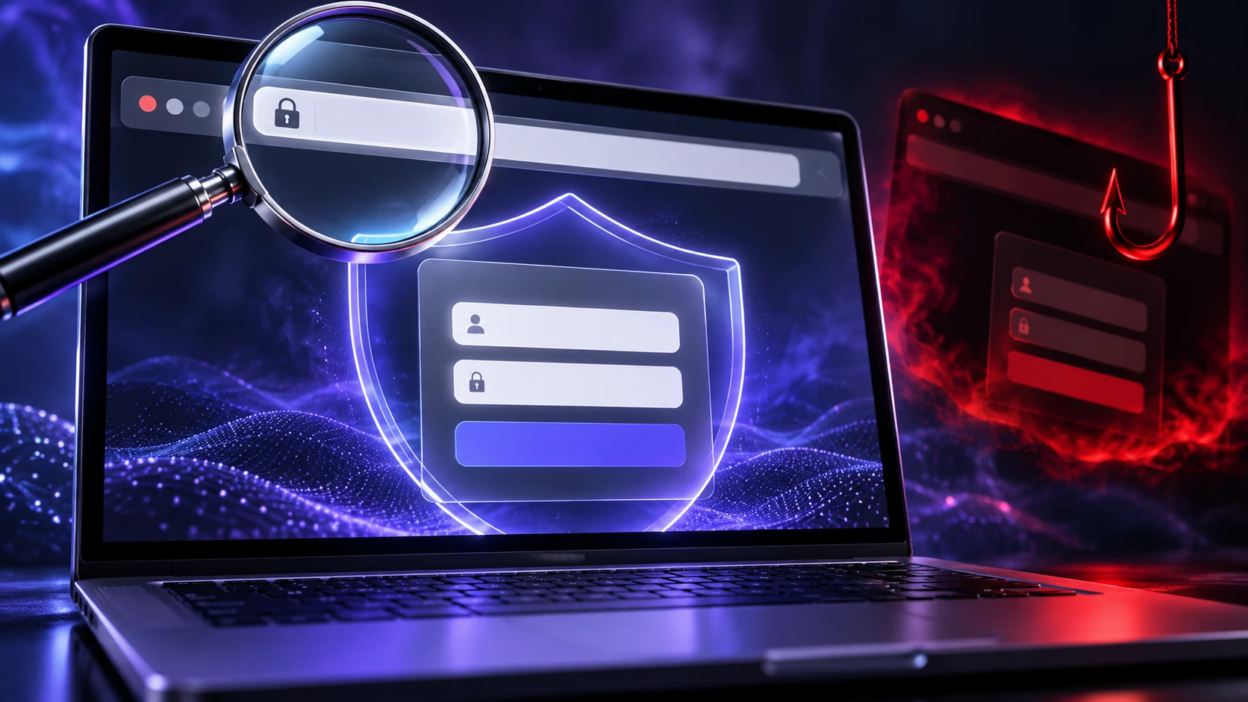
Typing a password into the wrong site can hand over your email, banking access, and private files in seconds. A legit-looking page can still be a trap, so the safest habit is to verify the site before you sign in. This guide walks through reliable checks you can do quickly, even on a phone.
Start With the Web Address
The web address is the fastest place to spot a fake. Scam sites rely on small changes that people miss at a glance.
Read the complete web address carefully and identify the website’s registered domain. For example, accounts.example.com belongs to example.com, while example.com.login-check.test belongs to login-check.test. Some legitimate websites use endings such as .co.uk, so checking only the last two parts is not always enough. Compare the registered domain with the organization’s official website before entering your password.
- Check the Core Domain: Confirm that the registered domain matches the service’s independently verified address rather than a longer lookalike with extra words.
- Watch for Character Tricks: Look for swapped letters, doubled characters, or unusual characters that mimic the real spelling.
- Be Careful With Subdomains: A subdomain can contain almost any words, so focus on the actual registered domain rather than a familiar brand name at the beginning of the address.
- Prefer Direct Navigation: Use bookmarks or type the address yourself instead of trusting a search ad or message link.
Suspicious links can also be hidden inside QR codes, making the destination harder to recognize before opening it. Our guide to QR code phishing explains how these scams direct users to fake websites and what to check before entering personal information.
Once the address looks right, move to connection and browser signals.
Confirm A Secure Connection Without Overtrusting It
HTTPS helps protect data in transit, but it does not prove a site is legitimate. Attackers can also use HTTPS, so treat it as a baseline requirement, not a final answer.
Before signing in, confirm that the website uses HTTPS and that your browser displays no connection or certificate warnings. Depending on the browser, connection information may appear through an icon beside the address rather than a traditional padlock. Remember that HTTPS encrypts the connection, but it does not prove that the website belongs to the company it claims to represent.
- Require HTTPS for Logins: Never enter a password on a page served over plain HTTP.
- Heed Browser Warnings: Security warnings are designed for prevention, not convenience. Do not bypass a certificate or dangerous-site warning to reach a login page.
For browser-specific instructions, Google’s official guide to checking if a site’s connection is secure explains how to identify connection warnings and inspect website security information in Chrome.
If your browser displays a security warning, our guide explaining why your browser says “Not Secure” covers common causes, certificate problems, and the precautions to take before entering sensitive information.
Next, verify whether the site provides consistent, independently verifiable information.
Check Site Quality and Consistency Signals
Website design can provide useful warning signs, but appearance alone cannot establish whether a site is legitimate. Scammers can copy professional login pages, logos, and layouts from trusted brands. At the same time, a genuine website may contain spelling mistakes or outdated design elements. Check consistency across the site, but always give more importance to the domain and independently verified ownership.
Scan a few key pages that real businesses typically maintain. You are looking for coherence across the entire site, not only the login page.
- Review the Footer Details: Look for an identifiable organization, working policy pages, and verifiable support information. Remember that scammers can copy company names, addresses, and contact details from legitimate websites.
- Open Several Pages: Broken links, empty pages, and repeated template text can be warning signs on scam sites.
- Check Contact Options: Look for support information that you can verify through a trusted source, rather than trusting contact details on the page alone.
- Look for Consistent Language: Strange phrasing, inconsistent capitalization, and abrupt tone changes can be warning signs, although professional wording is not proof of safety.
Quality signals are not perfect, so combine them with technical checks.
You can also check an unfamiliar website using Google Safe Browsing’s Site Status tool. It helps identify websites Google has flagged for dangerous content, including certain phishing and malware threats. However, a clean result does not guarantee that a website is legitimate or completely safe.
Use Built-in Browser Tools to Inspect the Page
You do not need advanced skills to spot a risky login page. A few browser actions can reveal whether the page is behaving like a normal sign-in screen.
On desktop, hovering over a link can preview its destination. On many phones, touching and holding a link opens a preview or menu that shows its address. A link may still redirect after opening, so check the address bar again before entering credentials.
- Preview Link Destinations: Check that password reset, account recovery, and help links lead to the service’s verified website or an official identity provider that the service uses.
- Check the Address Bar During Redirects: Some legitimate services redirect users to Google, Microsoft, or another trusted identity provider for authentication. Verify that the destination belongs to the expected provider, and stop if the website changes to an unfamiliar or suspicious domain.
- Use A Password Manager Prompt: If saved credentials do not appear automatically, check the website address carefully. A domain mismatch may explain the missing autofill, although browser settings or changes to the login page can also cause it.
Password storage tools can also help reduce the risk of credential reuse. Our comparison of password manager vs browser password saving explains their security differences and how they protect saved login credentials.
Now compare common red flags against safer signals using a quick reference table.
| What You Check | Safer Signals | Warning Signs |
|---|---|---|
| Domain Name | Registered domain matches the organization’s independently verified address | Lookalike spelling, deceptive subdomains, or an unfamiliar registered domain |
| Connection | HTTPS with no browser security or certificate warnings | HTTP, certificate errors, or dangerous-site warnings |
| Login Behavior | Uses the verified service domain or an expected identity provider | Unfamiliar login destinations, unexpected permission requests, or suspicious popups |
| Site Trust Pages | Consistent, independently verifiable company and support information | Missing, copied, misleading, or unverifiable contact details |
Verify the Identity Behind the Site
Before entering your password, confirm the site belongs to a real organization. This is especially important for banking, healthcare portals, and government services.
Look for clear ownership signals and consistency across official communications you already trust. If anything feels off, stop and verify through an independent path.
- Use Official App or Bookmark: Access the service from its official app or a saved bookmark you created earlier.
- Confirm With Known Channels: Use a phone number from a card, bill, or prior statement, not from the current page.
- Search Carefully Without Clicking Ads: If you must search, skip sponsored results and confirm the domain before opening it.
Even a genuine Google or Microsoft sign-in page can lead to risks if a connected application requests unnecessary permissions. Our guide to OAuth phishing and malicious app permissions explains how attackers exploit legitimate authorization screens and why users should review access requests carefully.
Identity checks reduce the chance of falling for cloned login pages.
Watch for High-Pressure and Credential-Harvesting Tricks
Scam sites push urgency because it reduces careful thinking. They often claim your account is locked, your payment failed, or you must verify immediately.
Legitimate services may send alerts, but they typically avoid forcing you to enter credentials through a surprise link. Treat urgent prompts as suspicious until proven otherwise.
- Unexpected Login Requests: A site asking you to sign in again without a clear reason can be unsafe.
- Unusual Data Requests: Be suspicious of unexpected requests for passwords, one-time verification codes, backup codes, or payment details, particularly when the request appears after clicking a link in an email, text message, or popup.
- Forced Download Prompts: Being pushed to install a file to view an invoice or message is a major warning sign.
Some fraudulent websites also display fake verification screens that instruct visitors to download files or run commands. Our guide to fake CAPTCHA malware explains how these deceptive prompts work and why users should avoid unexpected verification instructions.
If a website pressures you to act immediately, close the suspicious page and open the service through its official app or a trusted bookmark. Switching to another device or network does not make a fraudulent website safe.
Reduce Risk With Account and Device Protections
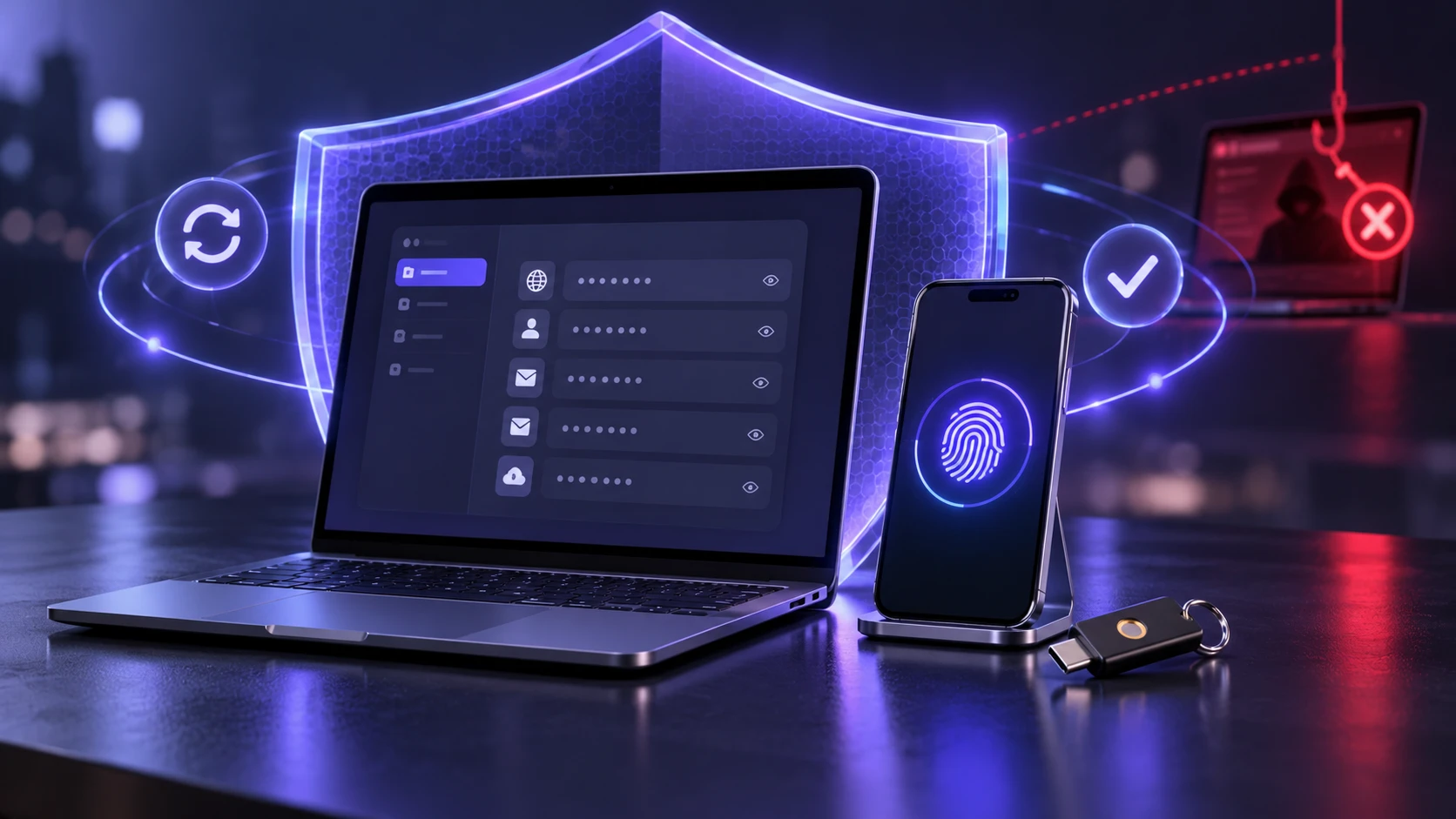
Even careful users can land on a bad page. Strong account hygiene limits the damage if a password is exposed.
Use unique passwords and enable multi-factor authentication wherever possible. Keep your browser and operating system updated so known exploits are blocked.
These protective measures also align with CISA’s online safety recommendations, which emphasize recognizing phishing attempts, using strong passwords, enabling multi-factor authentication, and keeping software updated.
- Use Unique Passwords: Reused passwords turn one mistake into multiple account takeovers.
- Turn on Multi-Factor Authentication: Enable multi-factor authentication for important accounts. When available, choose phishing-resistant options such as passkeys or security keys. Never share verification codes or approve login requests you did not initiate.
- Rely on A Password Manager: Autofill behavior can help you detect a domain mismatch quickly, but always confirm the address independently.
- Keep Security Updates Current: Updates often patch vulnerabilities used in phishing and drive-by attacks.
These habits support the checks you do before typing a password.
For accounts that support passwordless authentication, passkeys can provide stronger protection against traditional credential phishing. Our comparison of passkeys vs passwords explains why passkeys are harder to misuse on fake login pages and what security limitations still remain.
What to Do If You Already Entered Your Password?
Act quickly if you suspect you signed in on a fake site. Speed matters more than certainty because attackers can use credentials right away.
- Change the Password Immediately: Use the real site you navigate to independently, then create a new unique password.
- Change Reused Passwords: If you used the compromised password on other websites, change it on those accounts as well. Prioritize your email, banking, and other important services.
- Enable or Review Multi-Factor Authentication: Turn it on if it was disabled, remove unrecognized authentication methods, and regenerate backup codes if they may have been exposed.
- Review Account Sessions: Sign out of all devices and remove any unknown logins or connected apps.
- Monitor Financial and Email Accounts: Check for password reset emails, new rules, forwarding changes, or unauthorized transactions.
- Contact Financial Providers: If you entered banking details, card information, or payment credentials, contact your bank or payment provider immediately using its official support number.
- Scan Your Device If Necessary: If the suspicious website caused you to download or install a file, update your security software and scan the device for malware.
After these actions, report the phishing attempt to the provider using its official support path.
For additional recovery and reporting advice, review the FTC’s guidance on recognizing and reporting phishing scams. It explains what to do after responding to a suspicious message and how to report phishing attempts in the United States. Readers in other countries should use the appropriate local reporting authority.
Conclusion
The safest approach is to treat every login as a trust decision. Check the registered domain carefully, require a secure connection, and confirm the website’s identity through sources you already trust.
Pair these checks with unique passwords, multi-factor authentication, and a password manager. When something feels off, stop and verify through a trusted route before entering your password.
Frequently Asked Questions
Is HTTPS Enough to Prove A Website is legit?
No. HTTPS protects the connection, but scammers can also obtain valid certificates. You still need to confirm the domain, look for warnings, and verify the organization behind the site.
What is the Quickest Way to Check If A Login Page is Fake?
Check the website’s registered domain and compare it with an official app or trusted bookmark. If your password manager does not recognize the page or a login redirect leads to an unfamiliar domain, pause and verify the destination. Remember that legitimate services may use verified third-party identity providers for sign-in.
Should I Enter My Password If A Site Says My Account Will Be Locked?
Avoid logging in from urgent prompts, especially from messages or popups. Navigate to the service using a saved bookmark or the official app, then check account alerts from within your account.